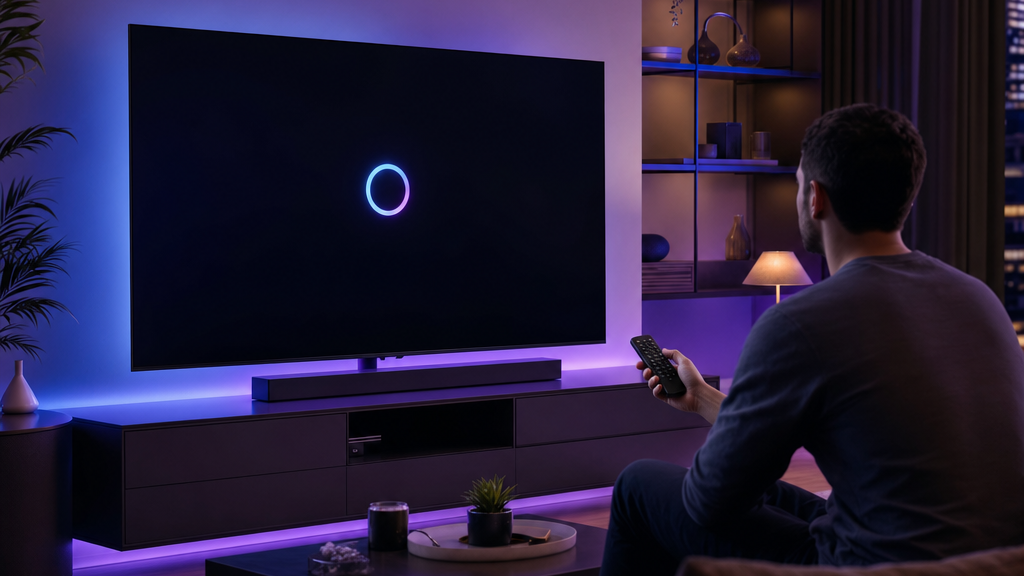
Is your IPTV not working? Whether it is buffering, freezing, or refusing to load channels, the cause is almost always one of a handful of common issues — and most take under a minute to fix. This guide walks through every fix, in order, so you can get back to watching fast. And if the fault is with the provider, your IPTV service provider can reset your line or connection.
Common reasons IPTV stops working
- Slow or unstable internet connection.
- Wi-Fi signal that is too weak.
- An app that needs restarting or updating.
- A device low on memory.
- Incorrect login details or an expired subscription.
Fix 1: Check your internet speed
IPTV needs a steady connection — roughly 25 Mbps for HD and around 50 Mbps for 4K. Run a quick speed test on the same network. If it is low, restart your router and try again. A wired Ethernet connection is far more stable than Wi-Fi.
Fix 2: Restart the app and device
Close the IPTV app completely and reopen it. If that does not help, restart the device itself (unplug a Firestick for 30 seconds). This clears temporary glitches and frees memory — it resolves a surprising number of problems.
Fix 3: Clear the app cache
On a Firestick, go to Settings → Applications → Manage Installed Applications, select your IPTV app, and choose Clear cache. A bloated cache is a common cause of freezing.
Fix 4: Improve your connection
- Move your device closer to the router, or use 5 GHz Wi-Fi.
- Use an Ethernet adapter for a wired connection.
- Pause large downloads and disconnect devices you are not using.
Fix 5: Update or reinstall the app
Make sure your IPTV player is on the latest version. If problems continue, uninstall and reinstall it, then sign in again. See our roundup of the best IPTV player apps if you want to switch players.
Fix 6: Check your login and subscription
Re-enter your username, password, and server URL exactly as provided. If channels still will not load, your subscription may have expired — contact your provider to confirm.
Still stuck? Message us on WhatsApp and we will help you fix it.
Get help on WhatsAppHow to stop IPTV buffering specifically
Buffering almost always comes down to bandwidth. In order: use a wired connection, switch to 5 GHz Wi-Fi, restart the router, clear the app cache, and close background apps. Some users also find a VPN helps if their ISP throttles streaming traffic.
When to contact your provider
If you have tried everything above and a specific channel or the whole service is down, the issue may be on the provider’s side. A good provider offers responsive support — you can reach our team through the contact page or on WhatsApp.
Want a service that just works? Try ours free for 24 hours.
Start your free trialFrequently asked questions
Why is my IPTV not working?
The most common causes are a slow connection, weak Wi-Fi, an app that needs restarting or updating, or an expired subscription. Work through the fixes above in order.
How do I stop IPTV buffering?
Use a wired connection or 5 GHz Wi-Fi, restart your router, clear the app cache, and close background apps.
Why do my IPTV channels not load?
Re-enter your login details exactly as provided and confirm your subscription is active. If it persists, contact your provider.
Does a VPN help with IPTV?
It can, if your internet provider throttles streaming traffic. Learn more in our VPN for IPTV guide.
Pick a plan and follow our simple setup guide for your device.