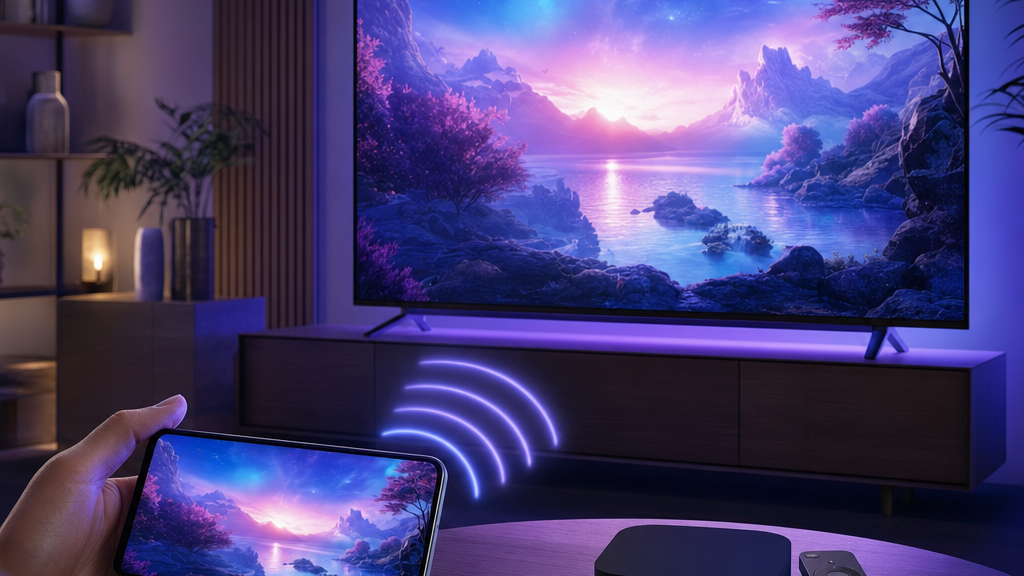
Want to watch IPTV on Roku? Roku is one of the most popular streaming devices in the U.S., but it handles IPTV differently from a Firestick. This guide explains exactly how to get IPTV on Roku using screen mirroring, step by step, plus a simpler alternative if you want a native app experience. You will also need an active IPTV USA subscription to sign in and start streaming.
Can you get IPTV on Roku directly?
Not really — and it is important to know this up front. Roku’s channel store does not allow most third-party IPTV player apps, so you cannot install IPTV Smarters or TiviMate directly on a Roku device. Instead, the reliable way to watch IPTV on Roku is screen mirroring (casting) from a phone, tablet, or computer that runs an IPTV app.
If you would rather have a proper on-screen app with a remote, an Amazon Firestick is the easier choice — see the alternative at the end of this guide.
What you need
- A Roku device or Roku TV.
- An Android phone/tablet, Windows PC, or iPhone/iPad with an IPTV app installed.
- Your IPTV subscription login (or a free trial).
- Both devices on the same Wi-Fi network.
Step 1: Enable screen mirroring on Roku
- On your Roku, go to Settings → System → Screen mirroring.
- Set Screen mirroring mode to Prompt or Always allow.
Step 2: Mirror from an Android device (easiest)
- Install an IPTV app such as IPTV Smarters on your Android phone and sign in with your details.
- Open your phone’s Cast / Smart View option from the quick settings panel.
- Select your Roku from the list and confirm the prompt on the TV.
- Open the IPTV app and play a channel — it appears on your TV.
Step 2 (alternative): Mirror from Windows
- Press Windows + K to open the Cast panel.
- Select your Roku device.
- Open your IPTV player in a browser or app and play.
On an iPhone or iPad, Roku’s screen mirroring support is limited; an Android device or a Firestick will give you a smoother result.
Test it free for 24 hours before you subscribe.
Start your free trial on WhatsAppEasier alternative: use a Firestick
If casting feels fiddly, an Amazon Firestick plugs into the same HDMI port and runs IPTV apps natively with a proper remote — no phone required. Follow our Firestick installation guide to set it up in minutes.
Fixing playback problems
If the picture stutters while mirroring, keep both devices close to the router, use 5 GHz Wi-Fi, and close background apps on your phone. For more help, see why your IPTV is not working and how to fix buffering.
Ready to watch? Compare plans and get started.
See plans & pricingFrequently asked questions
Can I install an IPTV app directly on Roku?
No. Roku does not allow most third-party IPTV player apps in its store, so screen mirroring from a phone or PC is the reliable method.
How do I watch IPTV on Roku?
Enable screen mirroring on the Roku, then cast from an Android phone or Windows PC running an IPTV app such as IPTV Smarters.
Is a Firestick better than Roku for IPTV?
For IPTV, yes — a Firestick runs IPTV apps natively with a remote, while Roku requires screen mirroring.
Why does mirroring buffer?
Usually weak Wi-Fi. Use 5 GHz Wi-Fi, keep devices near the router, and close background apps.
Pick a plan and follow our simple setup guide for your device.